Before You Start
Before you open a builder, decide three things:
- Who the page is for
- What action you want them to take
- What they need to believe before taking that action
For example, “indie fantasy readers should join my launch list” is much easier to build around than “I need a nice website.” A good landing page is not a full brochure. It is a focused argument.
How to Create a Landing Page in OnePagePrompt
1. Open the new project form
From your dashboard, choose the option to create a new project. This is where you will name the landing page and describe what you want the AI to build.
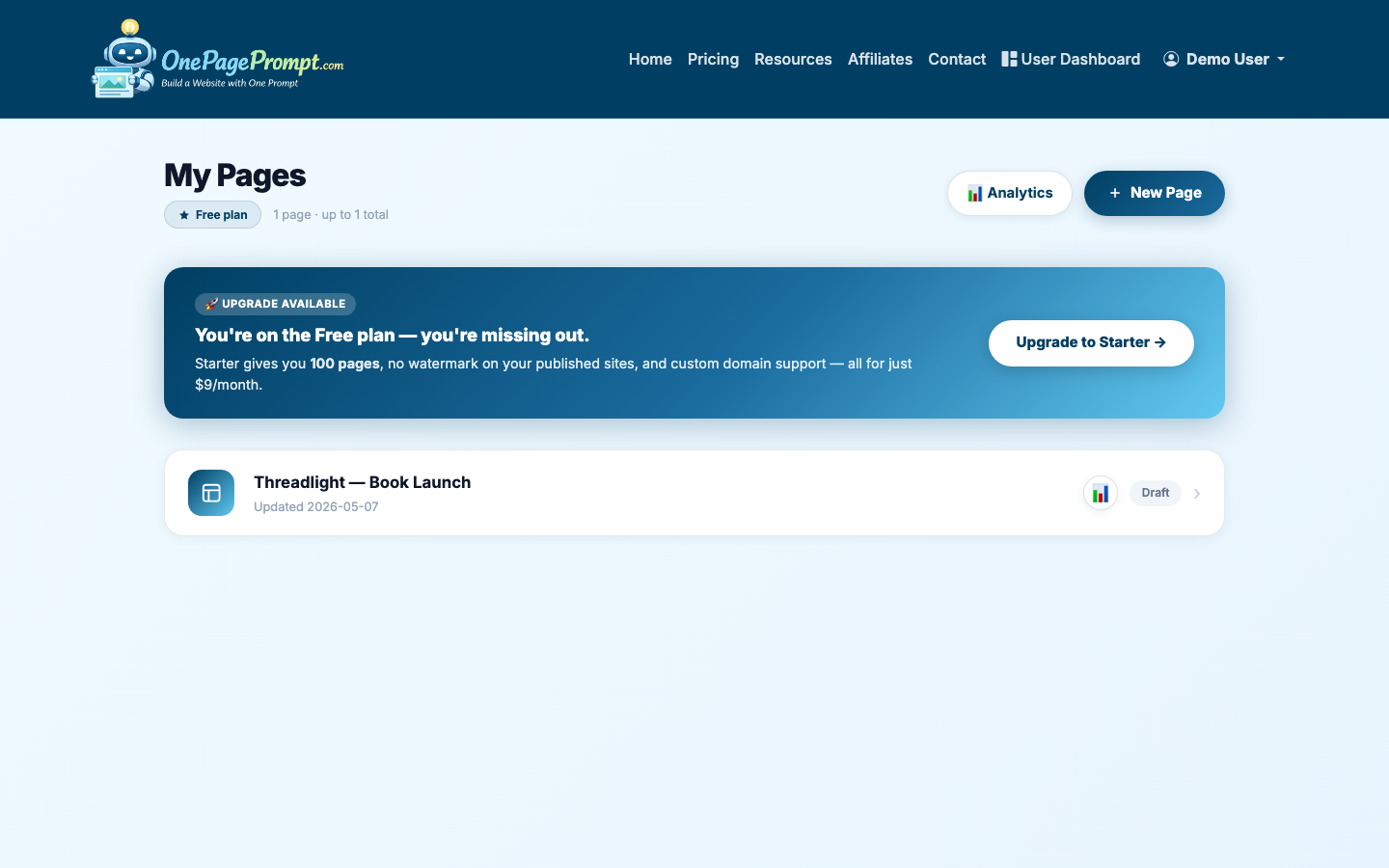
Give the project a practical title, such as “Book Launch Landing Page,” “Coaching Discovery Call Page,” or “Bakery Holiday Orders.” The title helps you recognize it later in your dashboard.
2. Write a plain-English landing page prompt
On the new project screen, describe the page you want. You do not need design language or technical terms. Be specific about the audience, offer, tone, sections, and call to action.
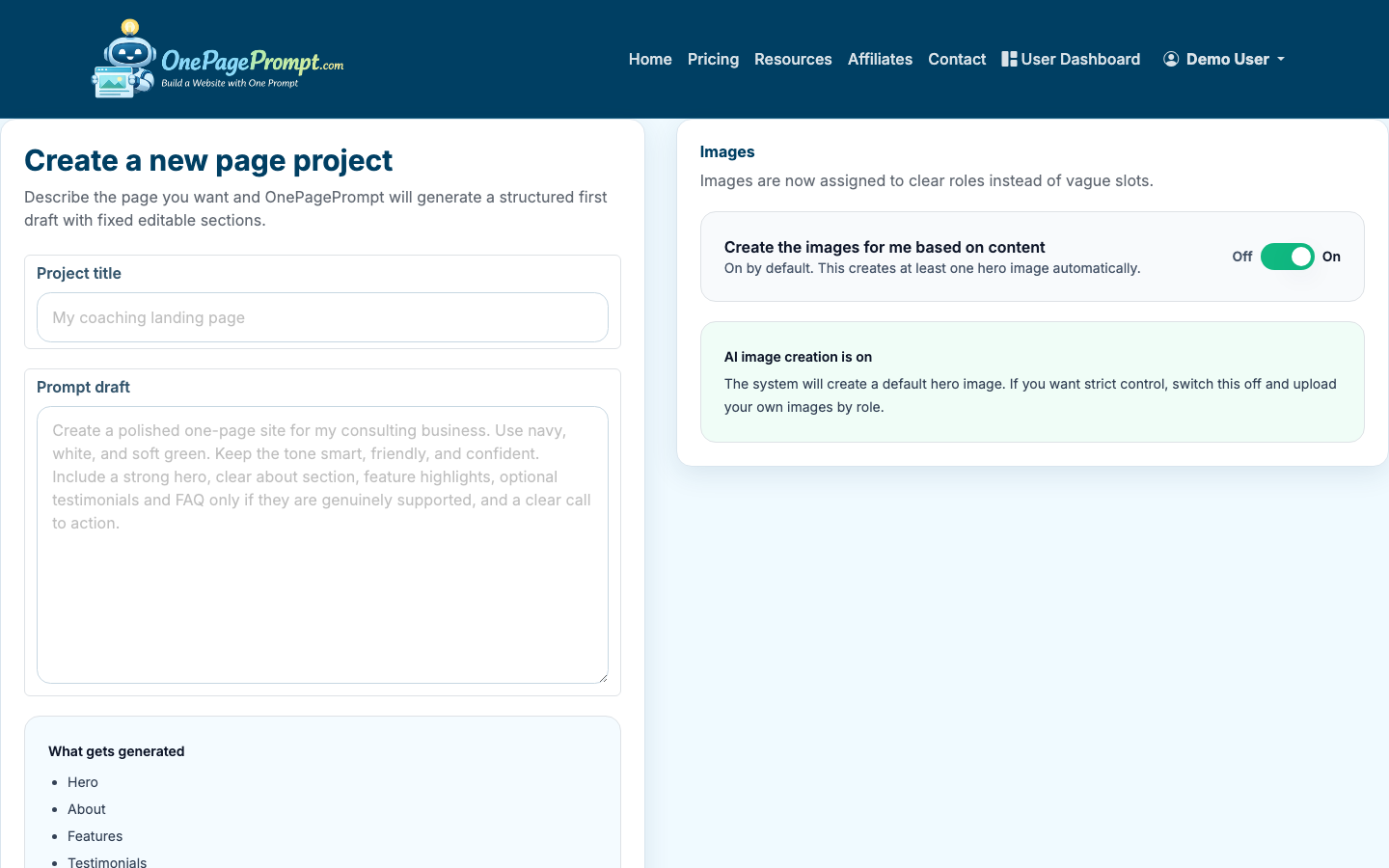
A strong prompt might look like this:
- “Create a landing page for a debut mystery novel. The audience is women 35–60 who like cozy mysteries. Include a hero section, book description, author bio, early review quotes, email signup call to action, and a warm but suspenseful tone.”
Or for a business:
- “Make a landing page for a local bookkeeping service for solo consultants. The goal is to get visitors to book a free 20-minute consult. Use a professional, calm tone. Include pain points, services, credibility, pricing starting point, FAQ, and a booking CTA.”
This is the same basic answer to “how do I create a landing page?” and “how do you make a landing page?”: start with the offer, then shape every section around the action you want.
3. Upload supporting images if you have them
If your landing page depends on visuals, upload relevant images before generation. OnePagePrompt supports up to 6 images per project.
Good image choices include:
- Book covers
- Product photos
- Founder or author headshots
- Venue photos
- Brand graphics
- Screenshots of an app or digital product
Avoid using six near-identical images. Variety helps the generated page feel more complete. If you only have one strong image, use that instead of adding weak filler.
4. Generate the landing page
After you enter the title, description, and optional images, generate the project. OnePagePrompt creates a structured one-page website in under two minutes.
The first version is a draft, not a final exam. You are looking for a strong starting point: clear sections, sensible flow, usable copy, and a visual direction you can edit.
5. Review and edit the generated sections
Open the project detail page to review the generated landing page spec. You can edit section content, adjust colors, and turn sections on or off without regenerating the whole page.
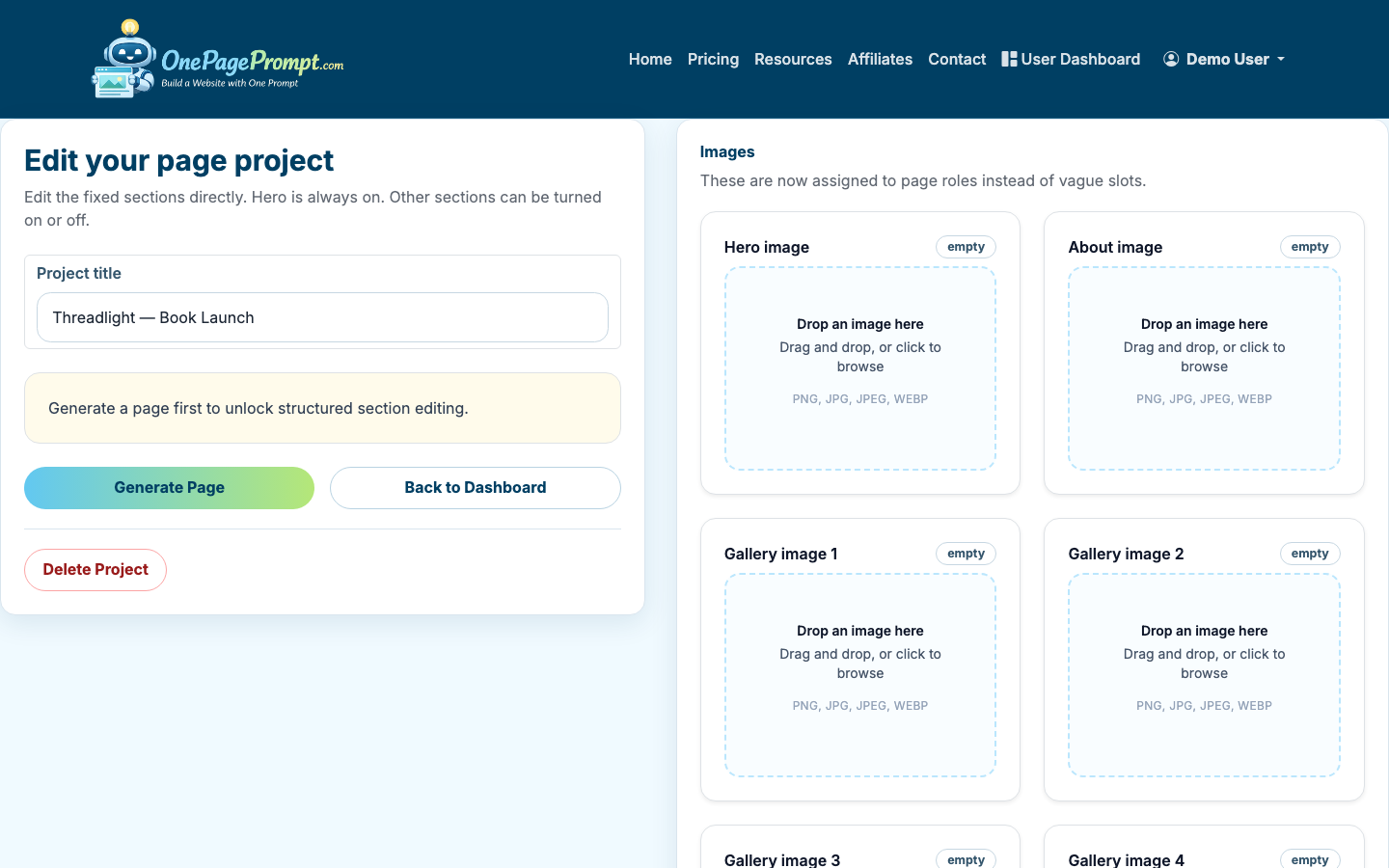
Work from top to bottom:
- Check that the hero section clearly says what the offer is.
- Make sure the first call to action appears early.
- Remove sections that distract from the main goal.
- Rewrite generic copy with specific proof, examples, or outcomes.
- Adjust colors so buttons and important sections stand out.
If you are learning how to build a landing page, this editing pass matters more than the first generation. The best landing pages usually get clearer through subtraction.
6. Preview the landing page before publishing
Use the preview page to inspect the landing page as a visitor would see it. Check the page on both desktop and mobile if possible.
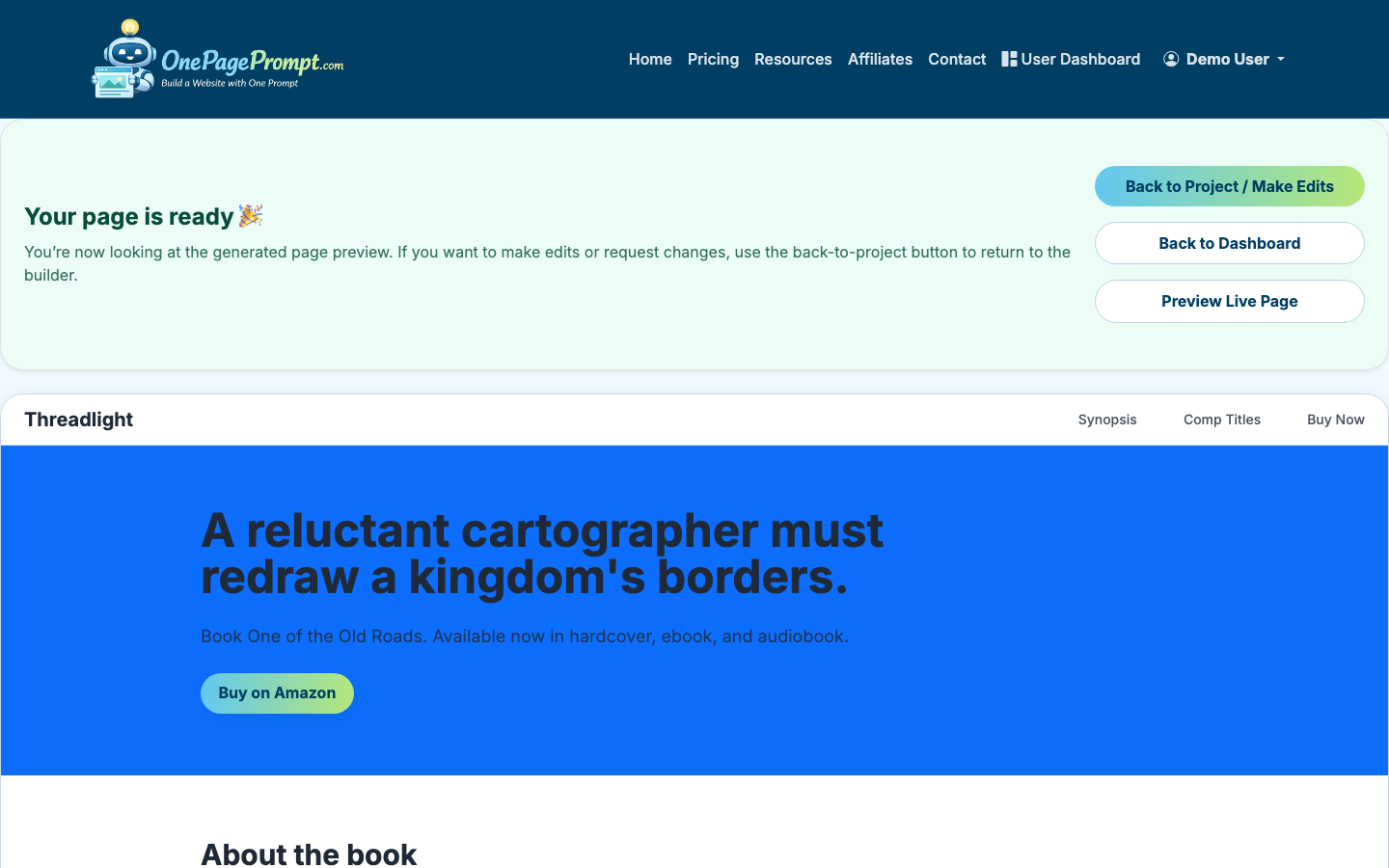
Look for practical issues:
- Is the headline understandable in five seconds?
- Is the main button easy to find?
- Does the page explain who the offer is for?
- Are images sharp and relevant?
- Does any section repeat the same idea?
- Is the final call to action clear?
For deeper design guidance, see How to Design a Good Landing Page. If your main goal is collecting email addresses or inquiries, How to Create a Lead Page covers that narrower use case.
7. Publish and share the public URL
When the preview looks ready, use the public page URL to share the landing page. OnePagePrompt publishes pages at a shareable URL in the format /p/<id>/<slug>.
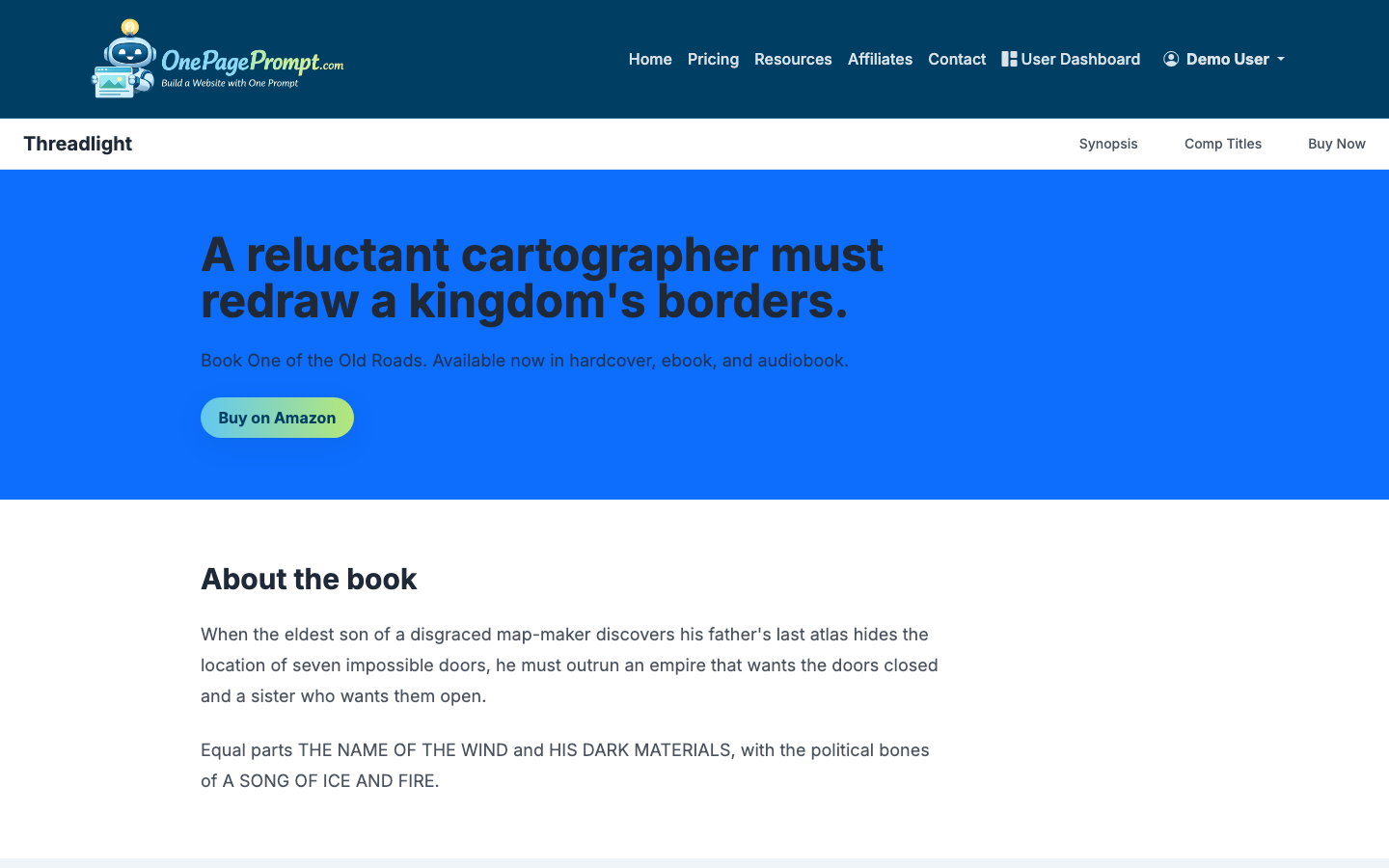
You can send this link to readers, prospects, collaborators, clients, or ad reviewers without asking them to log in. Paid plans also support custom domains through CNAME-based DNS setup, which is useful when the landing page is tied to a brand, book launch, or paid campaign.
8. Improve the page after real feedback
Publishing is not the end of the process. Once people start visiting the page, improve it based on actual reactions.
Useful changes often include:
- Making the headline more direct
- Moving the CTA higher
- Replacing vague benefits with specific outcomes
- Adding one strong testimonial
- Removing secondary links
- Clarifying pricing, timing, or next steps
If you are comparing options and wondering how to make a landing page without paying upfront, read How to Create a Landing Page for Free.
What a Good Landing Page Needs
A strong website landing page usually includes:
- A clear headline
- A short explanation of the offer
- One primary call to action
- Proof, such as testimonials, results, credentials, or examples
- Visuals that support the offer
- A simple FAQ or objection-handling section
- A final CTA near the bottom
You do not need every possible section. You need enough information for the right person to feel confident taking the next step.
Common Landing Page Mistakes
The most common mistake is trying to make the landing page serve too many audiences. A page for new readers, agents, reviewers, podcast hosts, and wholesale buyers will probably be too vague for all of them.
Other mistakes include:
- Using a clever headline instead of a clear one
- Hiding the call to action below too much copy
- Adding navigation links that pull visitors away
- Using stock images that do not show the real offer
- Asking for too much information in a form
- Publishing without checking mobile layout
When in doubt, simplify. One audience, one offer, one next step.