What a splash page should do
A good splash page is short, intentional, and easy to act on. It is not a full website. It is closer to a front door: visitors should understand what you are announcing and what to do next within a few seconds.
Common splash page uses include:
- A book launch page with preorder or newsletter signup
- A coming soon page for a new business
- A temporary event announcement
- A product teaser before a full landing page is ready
- A simple personal or author homepage
- A link-in-bio style page with one primary message
If you need a longer sales page with multiple objections, testimonials, pricing, and comparison sections, read How to Create a Landing Page instead. If your main goal is collecting emails, How to Create a Lead Page may be the better fit.
How to create a splash page in OnePagePrompt
1. Start a new project
From your dashboard, create a new one-page project. Give it a practical title, such as your book name, business name, event name, or launch campaign.
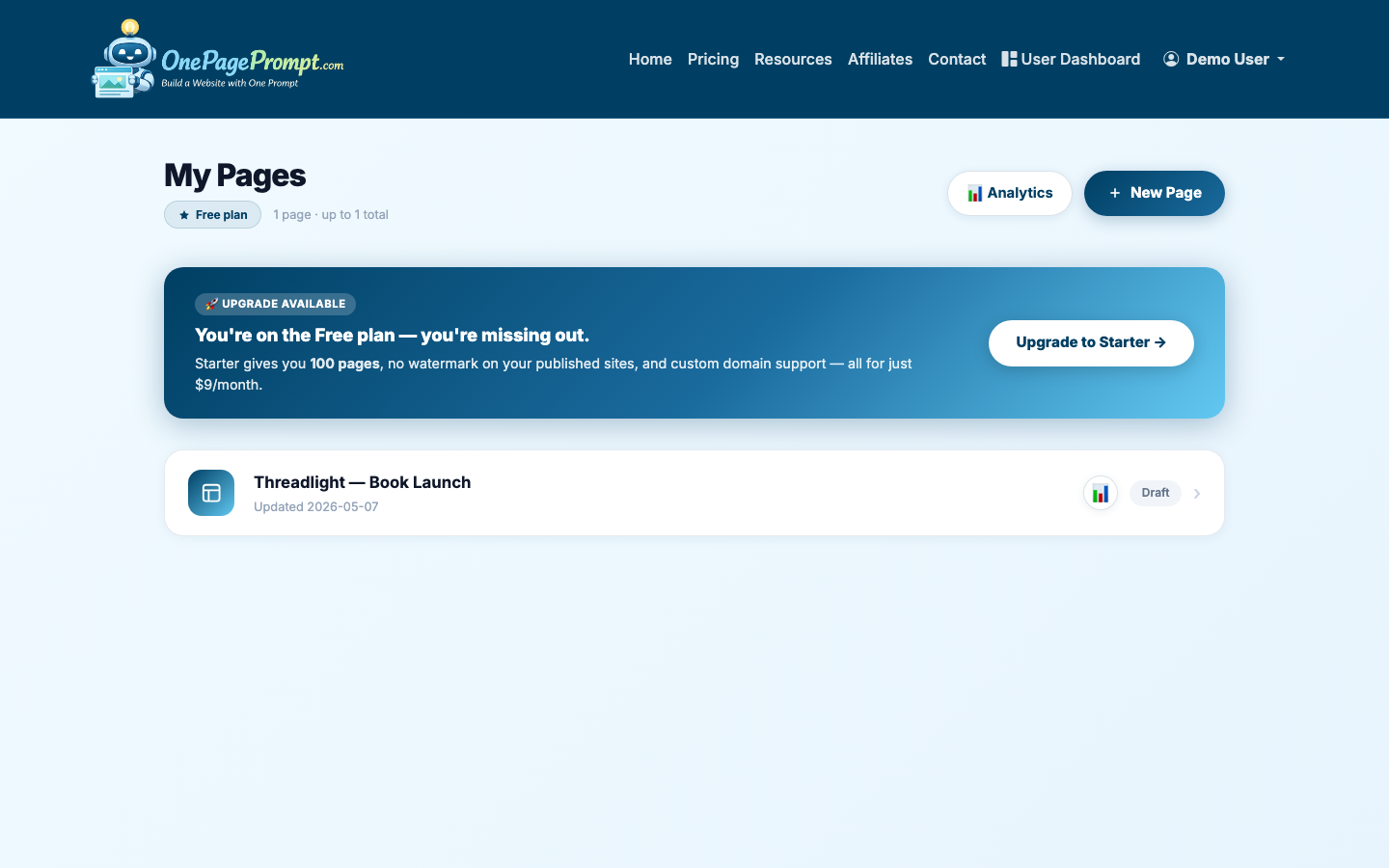
Then open the new project form.
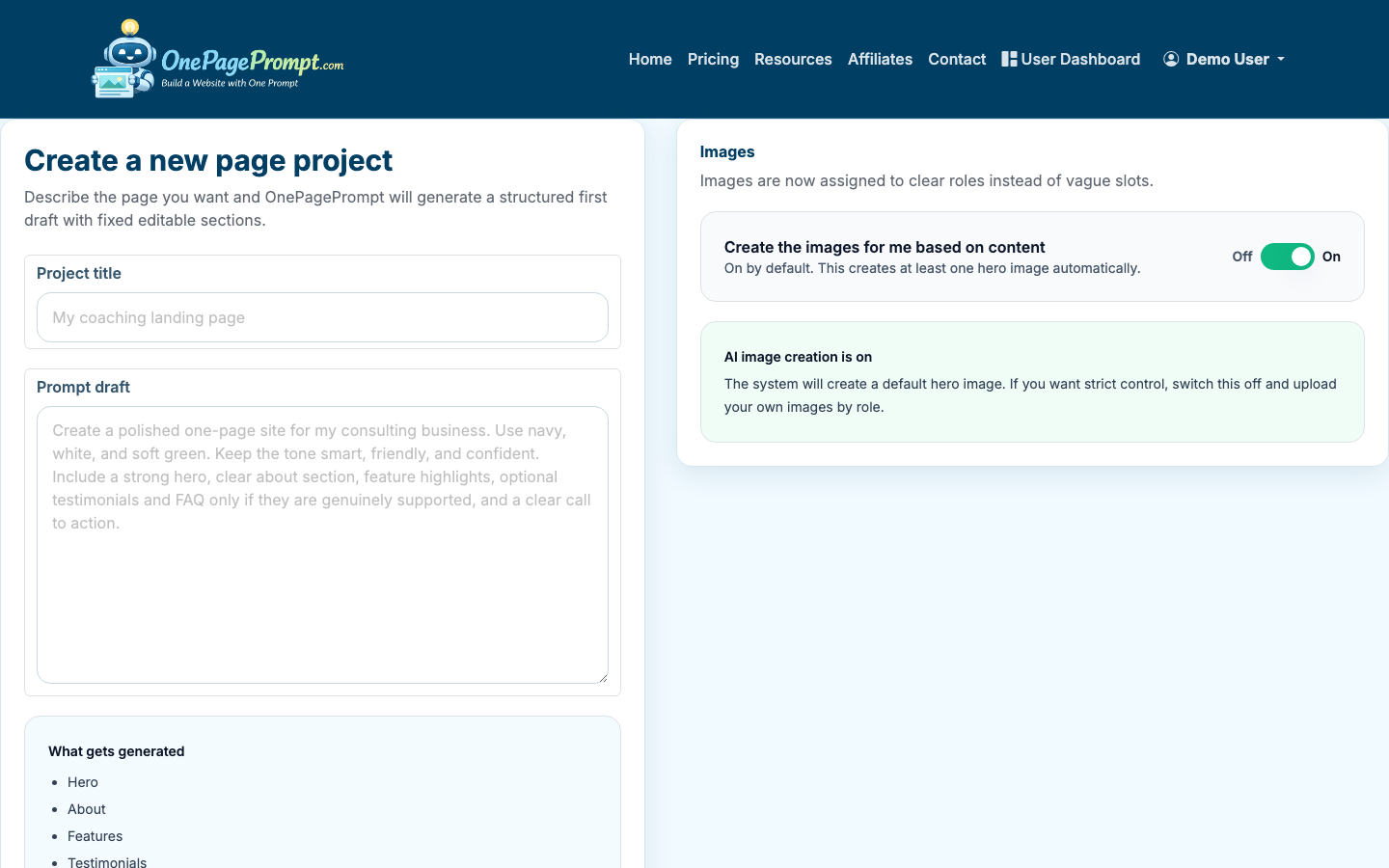
Your project title is mostly for organization inside the dashboard. Visitors will see the public page content, so do not worry if the internal title is more functional than polished.
2. Describe the page in plain English
In the project description field, explain what the splash page is for, who it is for, and what action visitors should take. You do not need to write a perfect prompt, but you should include the important context.
A useful prompt structure is:
- What the page is announcing
- Who the audience is
- The tone or style
- The main sections you want
- The primary call to action
- Any colors, images, or wording that matter
For example:
- Create a splash page for a cozy mystery novel launching in September. The audience is readers who like small-town mysteries. Include a short hook, author bio, preorder button, newsletter signup, and warm autumn colors.
- Create a coming soon splash page for a neighborhood bakery. The tone should be friendly and local. Include opening month, location, email signup, Instagram link, and a short note from the owner.
- Create a clean splash page for a freelance consultant. Include a one-sentence positioning statement, three services, proof points, and a button to book a call.
3. Upload images if they help the page feel real
OnePagePrompt lets you upload up to 6 images per project. Use images when they add trust or context: a book cover, product photo, author headshot, venue image, logo, or brand visual.
You do not need to upload images for every splash page. A simple waitlist page can work well with strong copy and color. But for authors, local businesses, creators, venues, and products, at least one real image usually makes the page feel more credible.
Avoid uploading several near-identical images. Pick the strongest ones and let the AI structure the page around them.
4. Generate the splash page
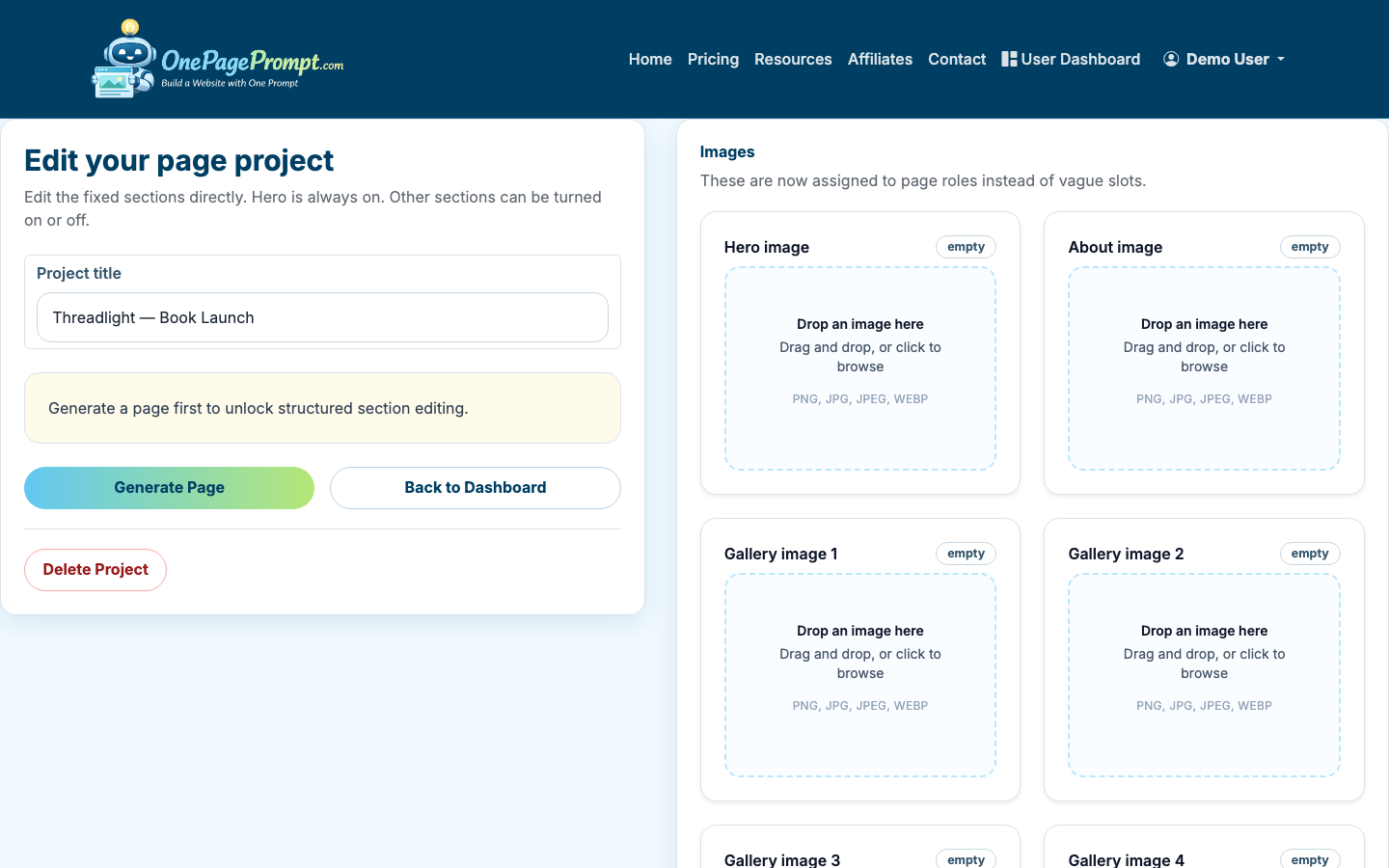
After you submit the project, OnePagePrompt generates a structured one-page website in under two minutes. The page is not just a flat block of text. It is organized into editable sections, with colors and layout decisions already applied.
When generation finishes, review the project detail page. This is where you can edit content, adjust colors, turn sections on or off, and regenerate if the first version misses the mark.
5. Tighten the headline and first screen
The first screen matters most. A splash page should answer three questions quickly:
- What is this?
- Why should I care?
- What should I do next?
For most splash pages, your headline should be direct rather than clever. If you are launching a book, use the title or a clear genre promise. If you are announcing a business, use the business name and what it offers. If the page is for an event, put the event name, date, and location near the top.
Good splash page headline patterns include:
- Coming Soon: The Maple Street Bakery
- A Cozy Mystery Set in a Town Full of Secrets
- Join the Early List for Northline Studio
- One Night Workshop for First-Time Memoir Writers
Keep the supporting copy short. Two or three sentences is usually enough before the call to action.
6. Edit sections so the page stays focused
A splash page does not need every possible section. In OnePagePrompt, use section toggles to hide anything that distracts from the main action.
For a typical splash page, useful sections are:
- Hero or introduction
- Short benefits or highlights
- About section
- Image or media section
- Signup, purchase, booking, or contact call to action
- FAQ, only if visitors need basic reassurance
Sections you may not need include long feature lists, heavy testimonials, pricing tables, or multiple competing calls to action. Those can work on a landing page, but they often make a splash page feel crowded.
If you are trying to make a splash page without spending money, compare your options in How to Create a Landing Page for Free. The same tradeoff applies: free tools are fine for simple publishing, while paid plans matter when you need a custom domain or more polished business presence.
7. Preview the page before publishing
Use the preview page to review the splash page as a visitor would see it. Read it from top to bottom and check whether the main action is obvious without explanation.
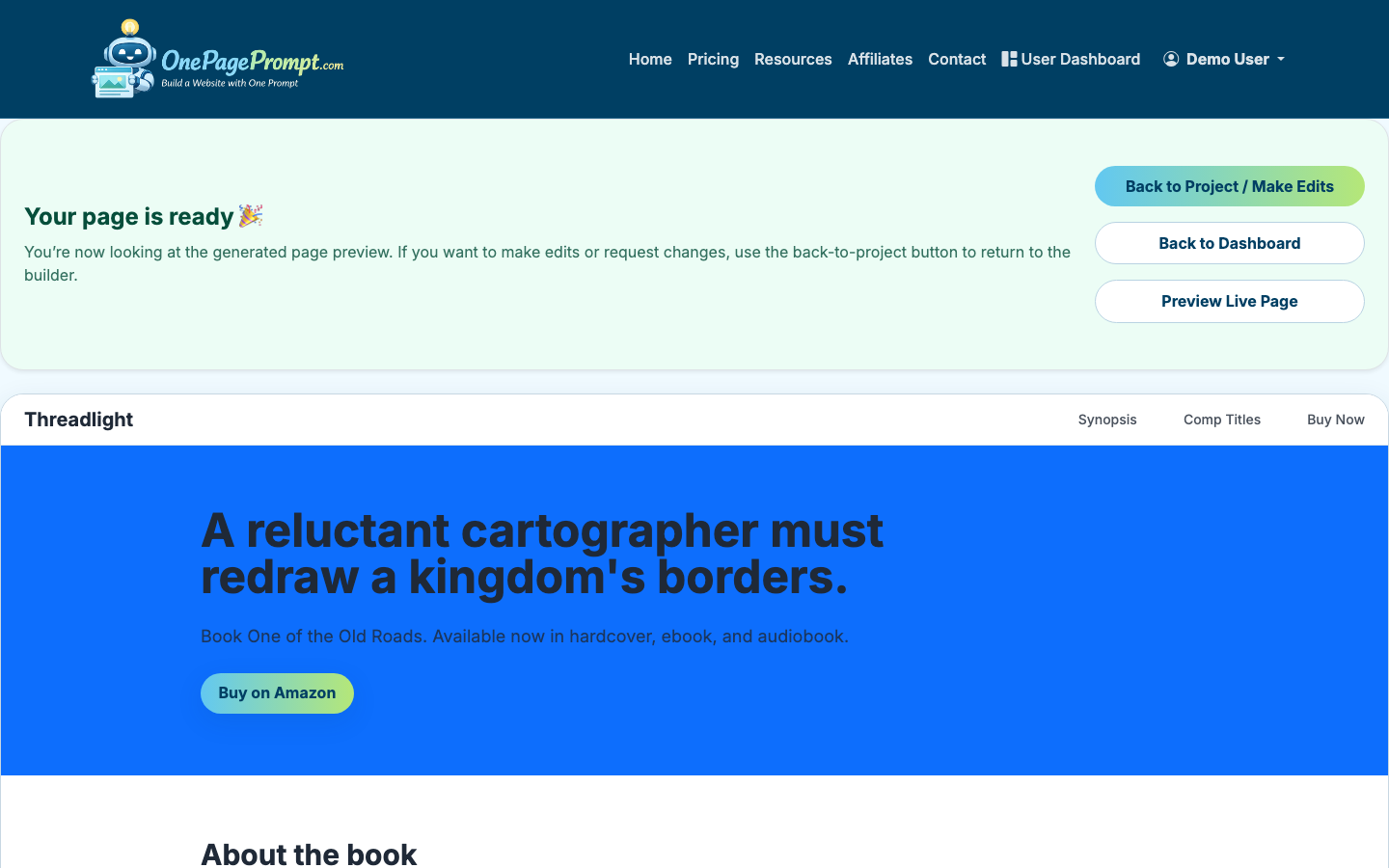
Check these details before sharing:
- The headline is understandable in 5 seconds
- The page has one primary call to action
- Images are relevant and not awkwardly cropped
- Button text says what happens next
- Important dates, prices, names, and links are correct
- The page works on mobile
8. Publish and share the public URL
Once the preview looks right, use the public share URL. OnePagePrompt pages are published at a URL like /p/<id>/<slug>, so you can send the page to readers, customers, friends, clients, or collaborators without requiring them to log in.
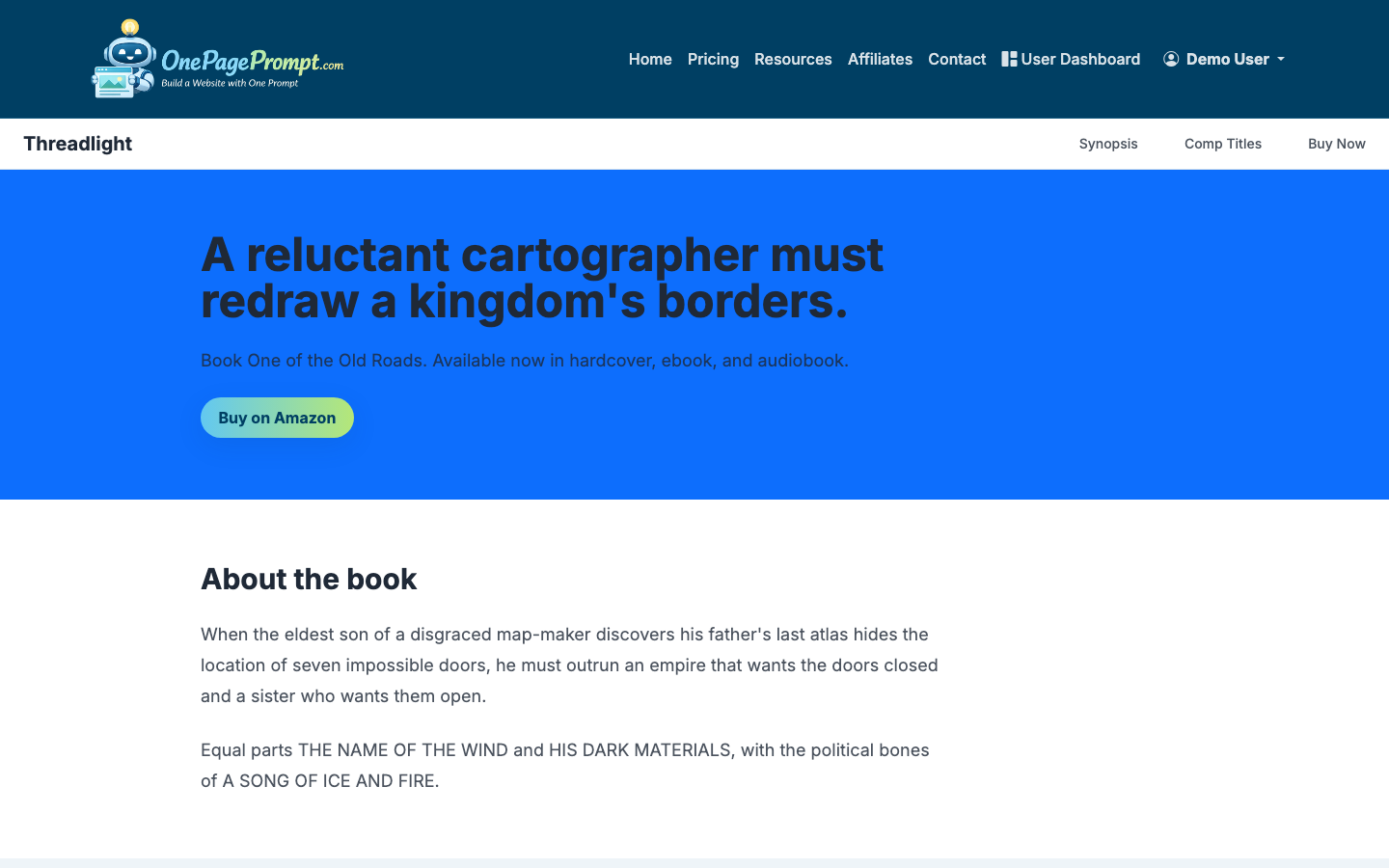
Paid plans also support custom domains through CNAME-based DNS verification. A custom domain is worth using when the splash page represents a business, author brand, book launch, or paid campaign. For casual tests or quick announcements, the public share URL is often enough.
What to include on a splash page
A strong splash page usually includes:
- A clear headline
- One short explanation of the offer, launch, or announcement
- One primary call to action
- One trust-building detail, such as an image, bio, date, location, or credibility point
- Optional supporting sections only when they help visitors act
The biggest mistake is trying to make the splash page do too much. If visitors can sign up, buy, book, read five sections, follow three social links, and visit another site, the page no longer has a clear purpose.
Splash page vs. landing page
A splash page is usually shorter and more introductory than a landing page. It may be temporary, campaign-specific, or used before a complete site exists.
A landing page usually has more persuasion. It may include testimonials, pricing, detailed benefits, objection handling, and multiple sections designed to convert paid traffic.
Use a splash page when:
- The message is simple
- The page is temporary or launch-focused
- You need something published quickly
- One call to action is enough
Use a landing page when:
- You are selling a product or service directly
- Visitors need more proof before acting
- You are running ads
- You need to explain pricing, features, or comparisons
Final checklist
Before you publish, make sure your splash page passes this checklist:
- The page has one clear purpose
- The headline names the launch, offer, business, book, or event
- The call to action is visible near the top
- The copy is short enough to scan
- Supporting sections build confidence instead of adding noise
- The public URL works in a private browser window
- Any custom domain setup has verified successfully
That is enough for most splash pages. You can always expand later, but the first version should give people a clear place to land and a clear next step.